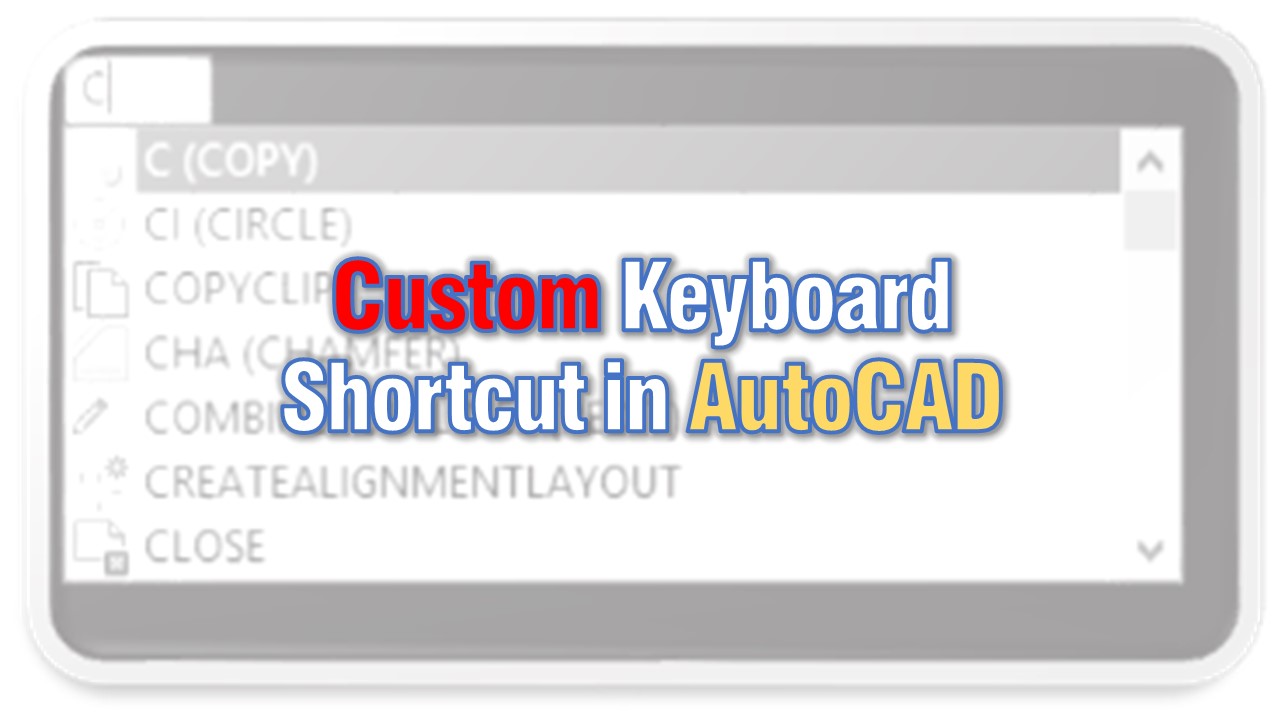
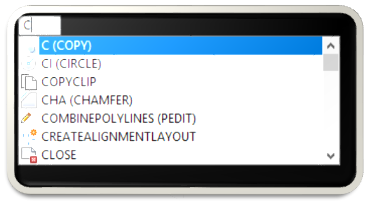
Many people like to use keyboard to enter commands, that’s because it saves lots of time. However some commands are difficult to remember, but in AutoCAD you can create your own keyboard shortcuts, or edit existing ones. For example I use C for COPY, R for ROTATE, RVC for REVCLOUD.
First method(hard one)
All preset commands are located in acad.pgp file which is located in C:\Users*your user name\AppData\roaming\autodesk*product you are using*\enu\support*here is an example: C:\Users\WorkPC\AppData\roaming\autodesk\c3d2017\enu\support. Note: AppData folder is hidden, so you have to enable hidden folders in order to see it. When you find acad.pgp file you can open it with notepad and edit the list. At the bottom you will find User Defined Command Aliases there you will enter your new commands, use the same format as you see in the file.
Second method
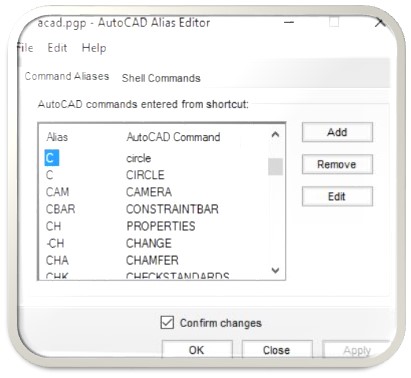
You can edit the file directly from your AutoCAD it’s easier and safer way! You need to type ALIASEDIT command and then fallow these simple steps:
- Choose if you want to add new or edit existing alias (keyboard shortcut)
- Find the existing allias (keyboard shortcut) and hit Edit (or just hit Add to add new)
- New window will pop up, here you type your alias (keyboard shortcut) if you have hit add button or you will see the alias have you chosen to edit if you hit Edit button. At the bottom you will choose new AutoCAD command you want to use with this alias.
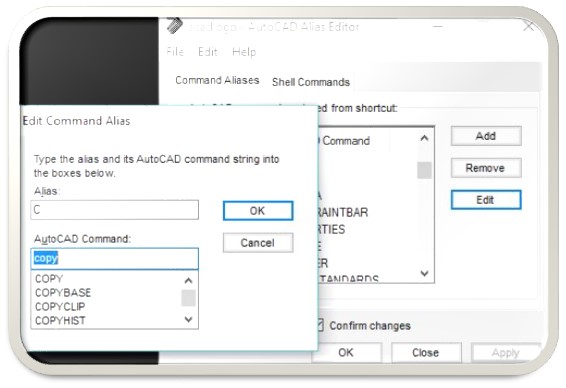
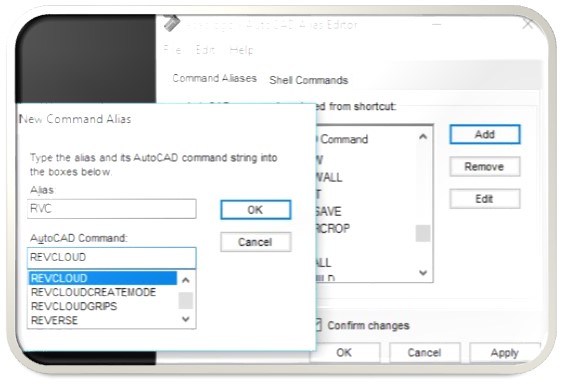
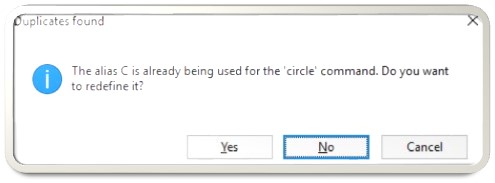
- Press OK and you will be good to go! If you wanted to edit an existing alias here AutoCAD will tell you that alias already exist and will ask if you want to redefine it. Just hit YES. Then you will see a window in which AutoCAD shows you the new keyboard shortcut.
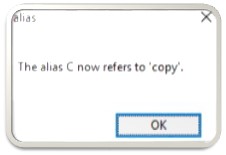
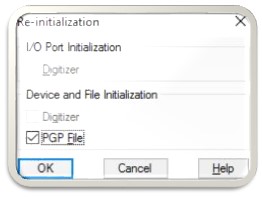
- Now you will have to re-initialize your acad.pgp file, just type reinit in popup window check PGP file and hit OK. Now your new Alias are ready for use! (If you restart your AutoCAD it will self initialize with new pgp file.)
Try it on your own drawing
TerraDraft Lite is free to download.