How to Trim and Extend at the speed of light!
Today I am going to share with you a little trick that I like using! How to Trim and Extend with Only One Command in AutoCAD?
Trim and Extend are both very, very useful commands and drafters usually use them hundreds of times a day! They accelerate drafting speed significantly! Can you imagine having to trim 5 lines and instead of using the Trim Command, manually moving their vertexes? What a nightmare!
However, you can advance their usage even more! Suppose you need to trim and extend several objects. It is possible to do that by using the two commands separately - TRIM / EXTEND. But, to do that using only one command, hold down the Shift key when either command is triggered to switch to the other. For a better understanding, you can follow the steps below:
- Type TRIM (or EXTEND) on the command line
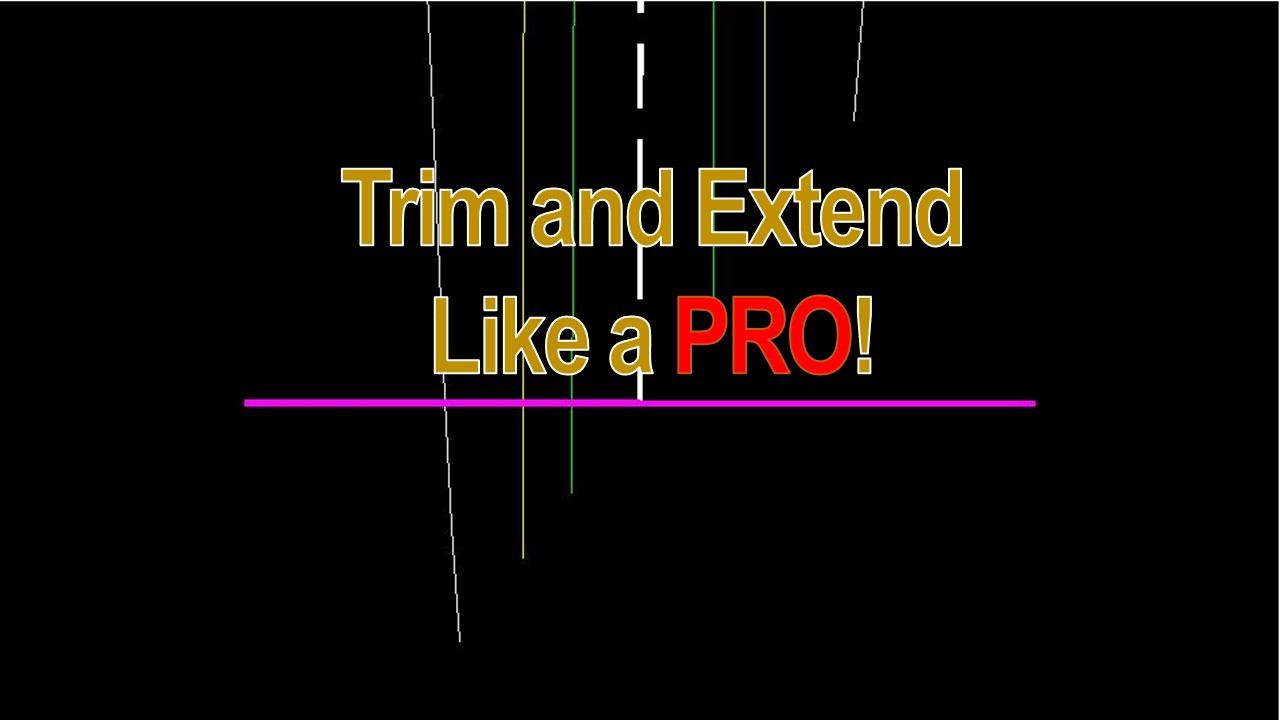
- Select the reference object to which other objects will be trimmed (or extended). In our example, we will start with TRIM and use the Wide magenta line as a Base.
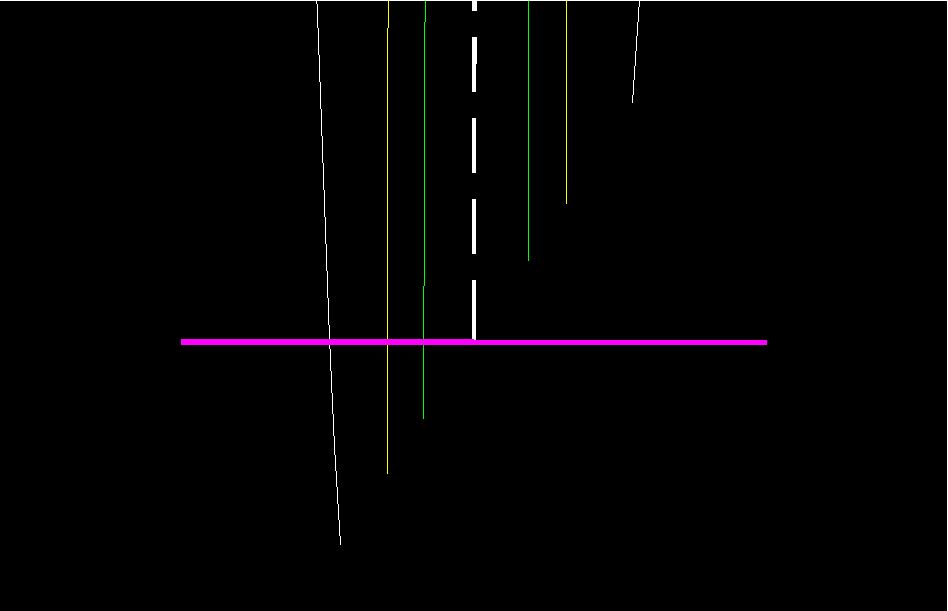
- Next select the objects that TRIM / EXTEND, the result should be expected.
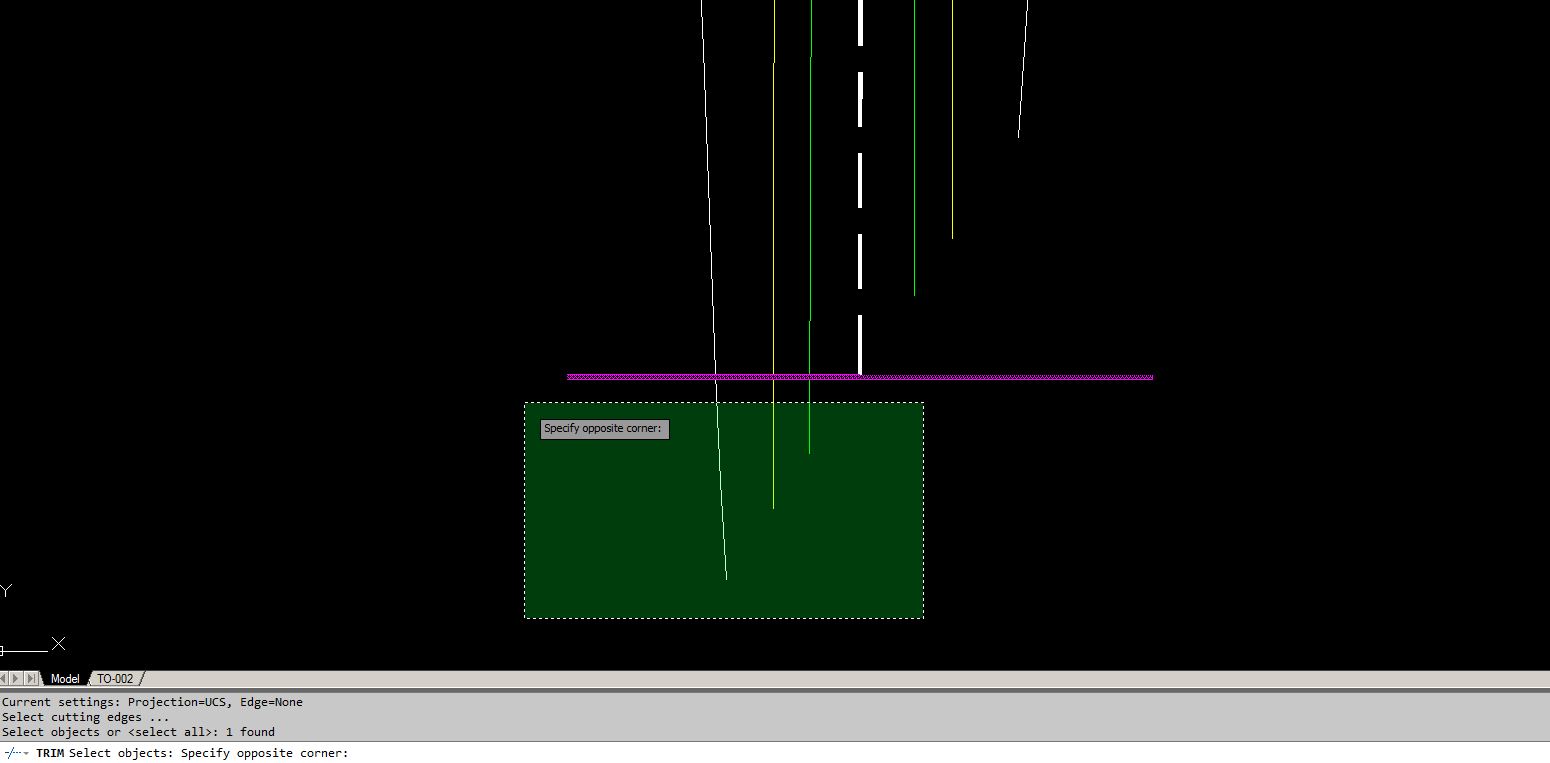
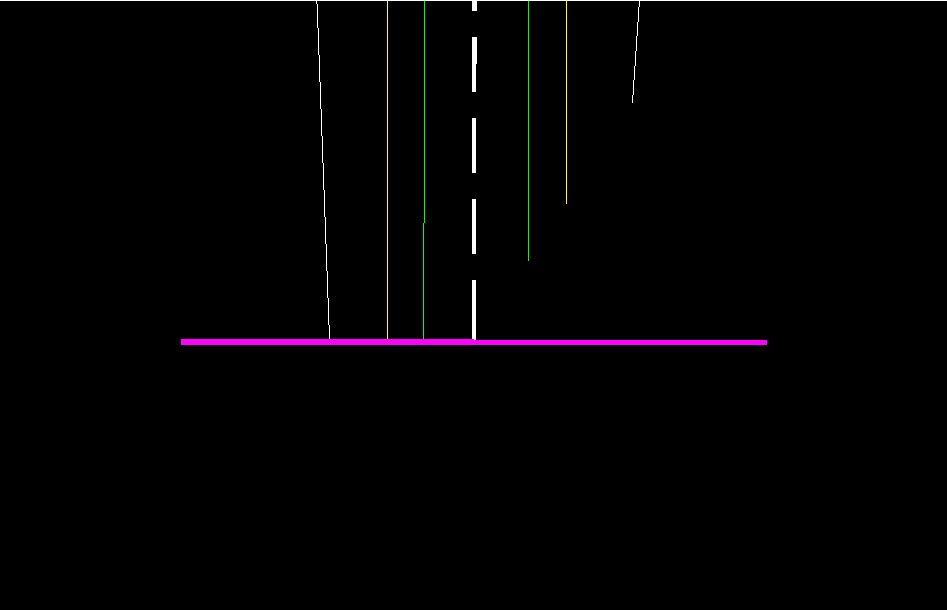
- Now to Directly EXTEND the lines that are left, press down, and hold the SHIFT key, and select the lines to EXTEND!
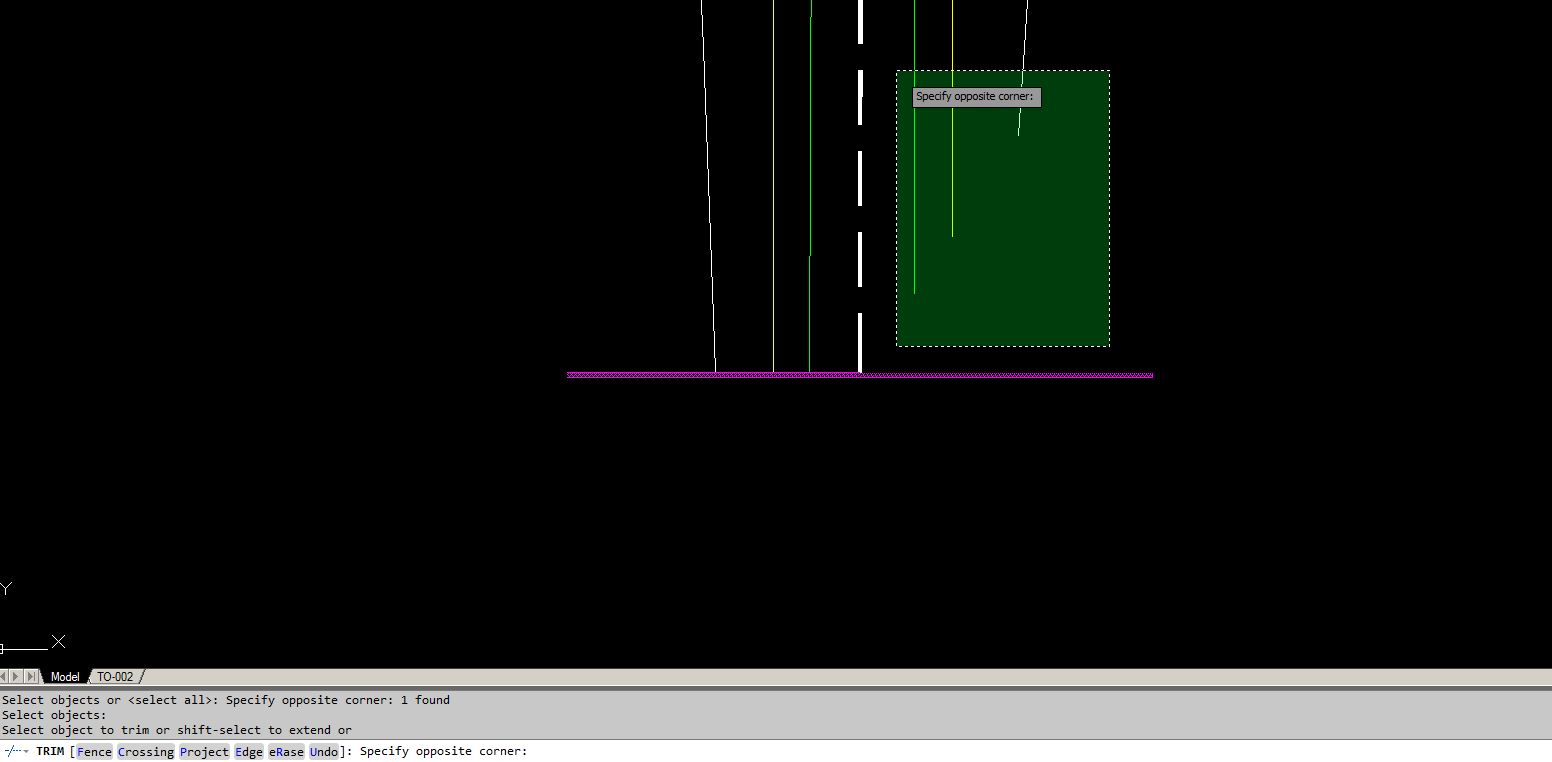
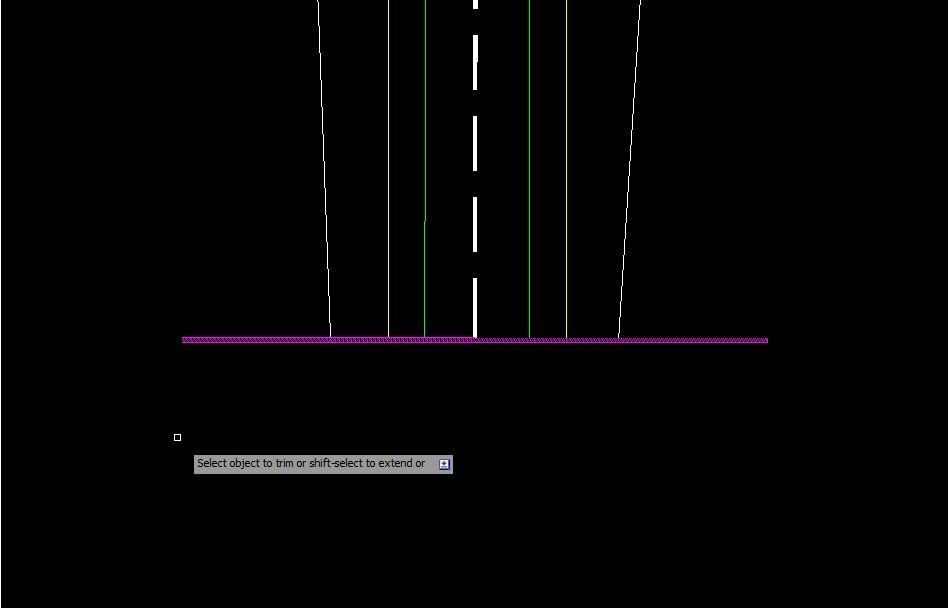
We managed to use 2 commands by typing only one and saving some precious time!
Check out our other AutoCAD Related Topics and become one of the best in your company!
When to use it
This is useful when you clean up a drawing where some lines run past a boundary and others stop short of it. For example, at the edge of a lot, a road or a building outline, you can fix both kinds in one pass, using the same boundary object.
Tips and common mistakes
- Hold Shift while you pick the object. The command then does the opposite action, so TRIM extends and EXTEND trims.
- Start with the boundary object selected first, as in the steps above.
- Release Shift before you pick the next object if you want the normal action again. Check the result after each pick so you do not trim something you wanted to keep.
Related tutorials
Try it on your own drawing
TerraDraft Lite is free to download.