

Several posts back we have talked about How can we easily and quickly Save All drawings with just one command. As a continuation, we will look at two great options for closing already saved drawings at once.
Close all active Drawings in AutoCAD
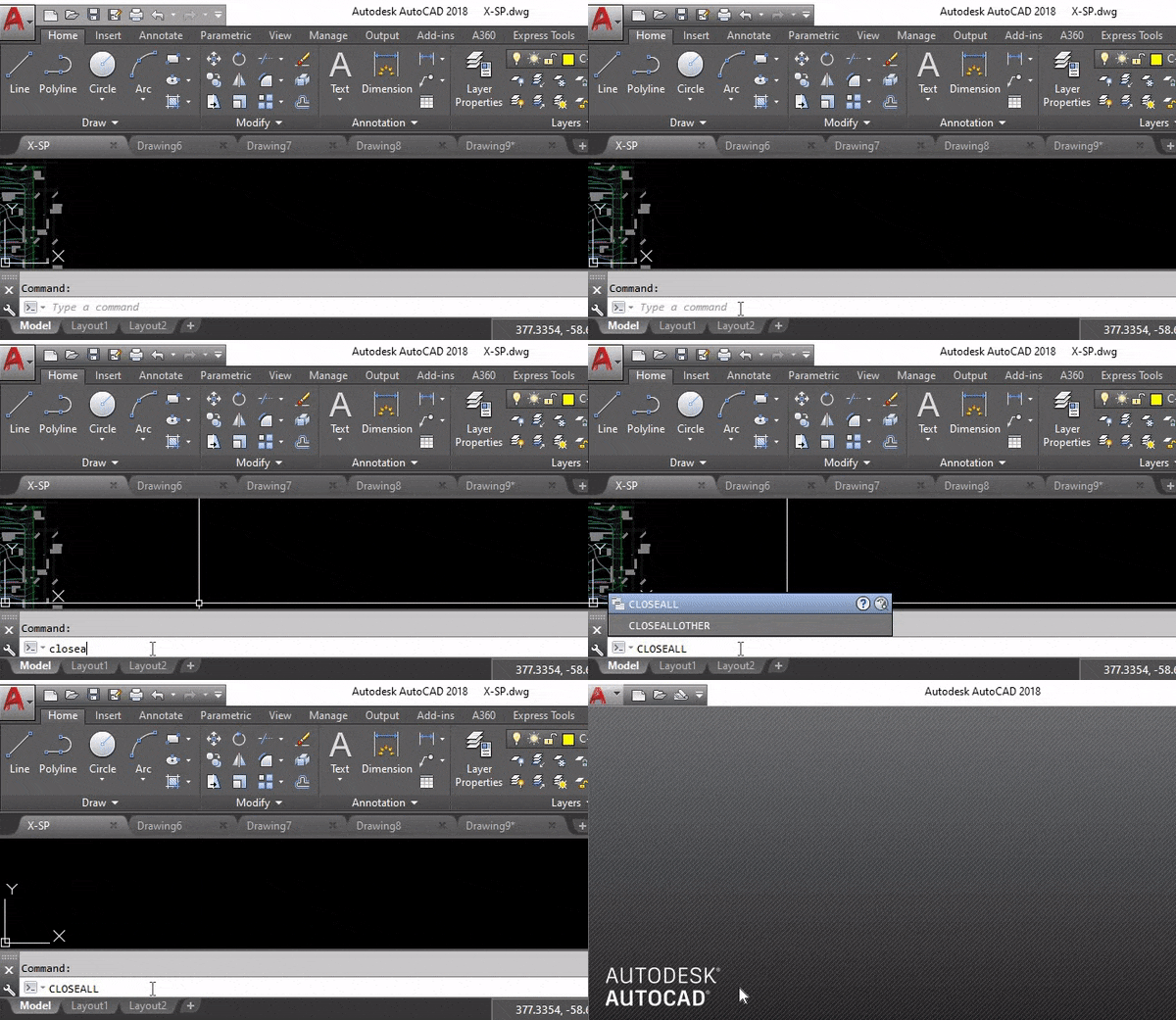
To Close all active Drawings simultaneously just type on the command line, CLOSEALL. This will close all drawings including the one currently on the screen. This is great when switching tasks or ending a work session.
Close all opened Drawings except the one on the screen
Type on the command line CLOSEALLOTHER and all opened drawings, except the one currently active on the screen will be closed.
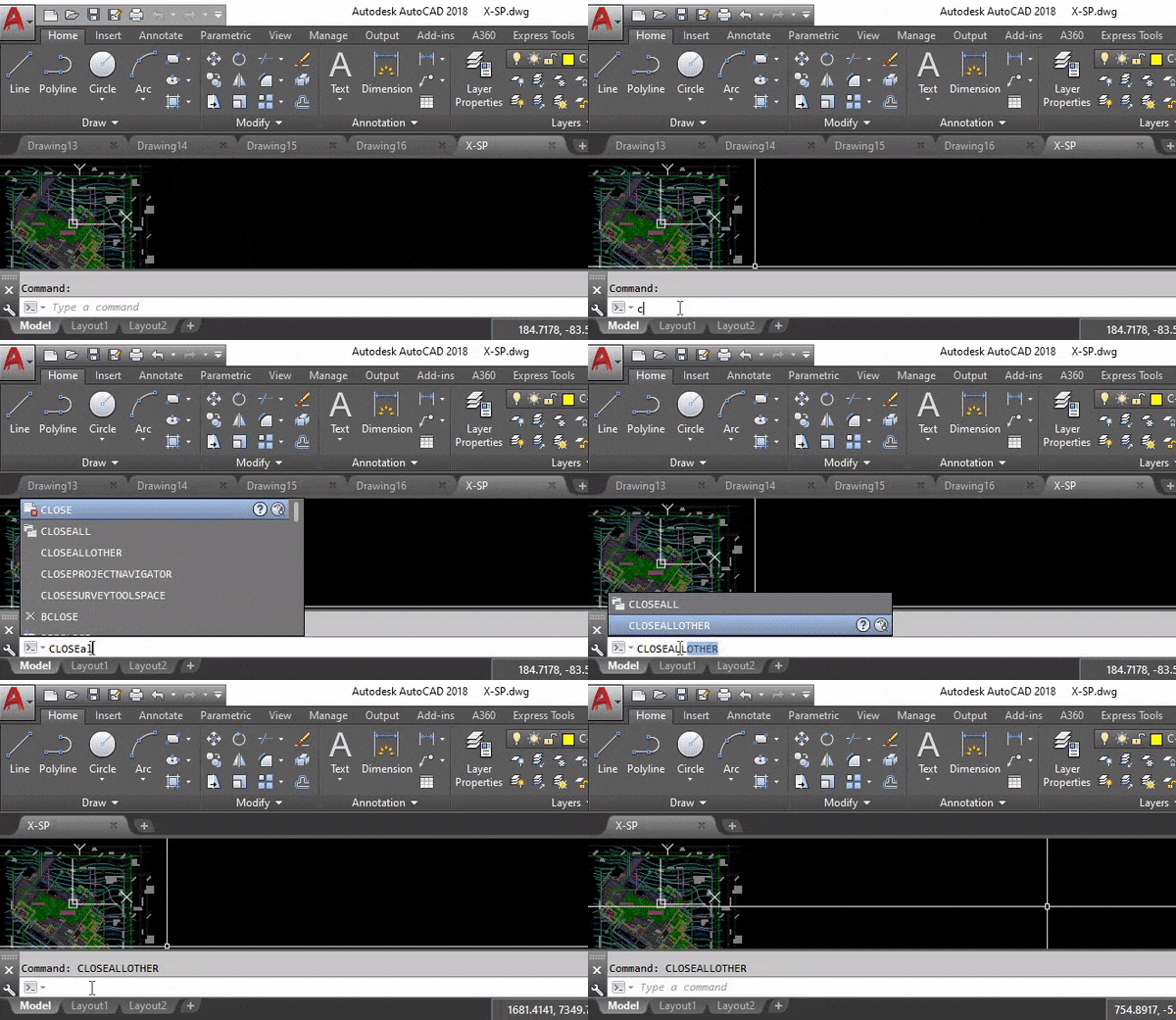
As a person who likes to open several AutoCAD drawings in one session, the combination of SAVEALL and CLOSEALLOTHER is quite powerful for me. I even have created a Macro that executes both every time I am switching tasks. To learn how to create such a Macro, check our post: Activate Multiple Commands with One WORD (Automate AutoCAD!)
Hope you found the post useful, learn more interesting tips and tricks at AutoCAD Tips and Tricks
When to use it
Use these commands at the end of a work session, or when you finish one task and move to another. If you work on a sheet of linked drawings and several files stay open all day, one command is much quicker than closing each tab by hand.
Tips and common mistakes
- Remember that CLOSEALL also closes the drawing on your screen. If you want to keep working in the current file, use CLOSEALLOTHER instead.
- Save before you close. Running SAVEALL first is a good habit, so no open drawing is left with unsaved changes.
- Pick the command to match your next step: CLOSEALL when you are finished, CLOSEALLOTHER when you want a clean workspace with only one drawing open.
Related tutorials
Try it on your own drawing
TerraDraft Lite is free to download.