If you have a Block with an Attribute Text that you want to hide, don’t worry you don’t have to delete the attribute, there is a simple way to turn the text invisible.
Also, if you receive a drawing with blocks that must have text attributes but they are not visible, or your own drawing that contains Block With Attribute Text that is not visible try this before calling your colleague for help.
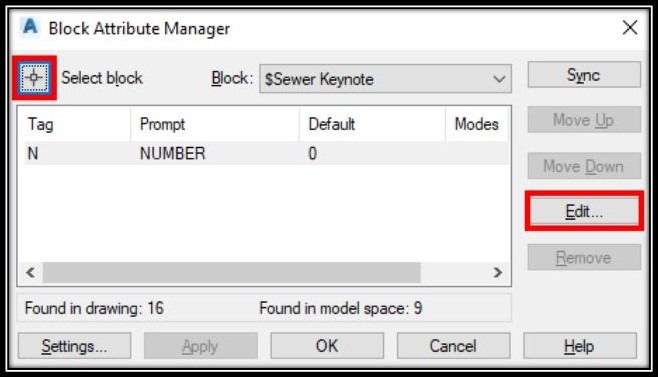
- First, type on the command line, **BATTMAN.**This will open a window called Block Attribute Manager.
- Click on Select Block and select the Block with missing Text. Or you can choose its name from the drop-down menu.
- After Choosing the Block Click on Edit.
- A new window will pop up, called Edit Attribute. Here you can change all kinds of attribute properties. However, we need to go to Attribute tab and under Mode check Invisible, in order to make our Attribute Text Invisible.
Note: If your Text is been missing from a Block go to Edit Attribute menu and uncheck Invisible.
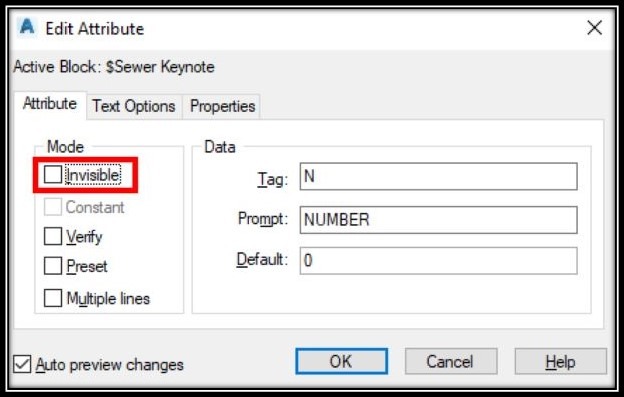
- Hit OK and you are ready!
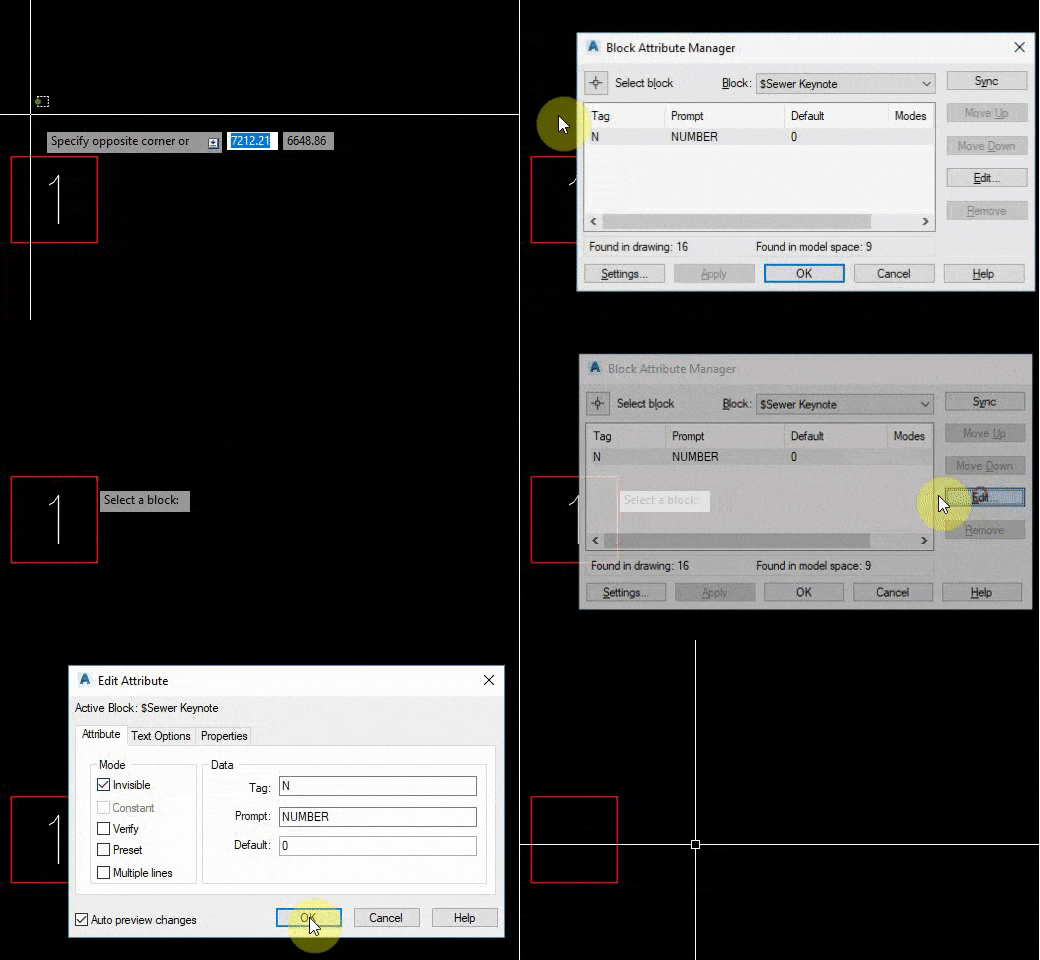
I hope this post helped you find Solution to your issues. Go check our other AutoCAD posts to learn more! And don’t forget to subscribe!
When to use it
This is useful when a title block, tag or label shows attribute text you do not want on the sheet, or when a block you received should show text but appears empty. In both cases the attribute is usually still in the block, and only its visibility mode needs to change.
Tips and common mistakes
- Do not delete the attribute to hide it. Use the Invisible check box in the Mode area of the Attribute tab, so you can bring the text back later.
- For a block that seems to have missing text, open the same Edit Attribute window and check whether Invisible is ticked before you suspect anything else.
- If the block is hard to pick in the drawing, choose its name from the drop-down list in Block Attribute Manager instead.
Related tutorials
Try it on your own drawing
TerraDraft Lite is free to download.