
All of the sudden when I select block I can see all the grips within the actual block, not only one (or several if it is a dynamic block). Do you have the same problem? If yes, don’t worry! We are going to explain how to bring back the old behavior of AutoCAD!
Selecting block having too Many Grip Points!
If this is the thing you see, then you are facing the same problem as me:
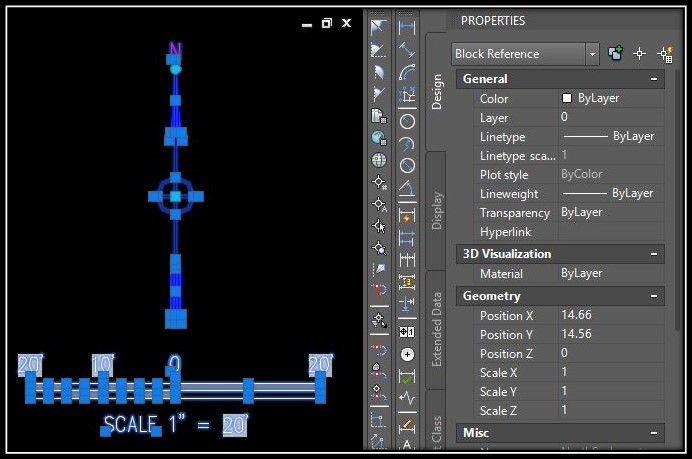 So How did that happened? Maybe a mischevious colleague “broke” your AutoCAD? Or your boss is testing you? Well, even though those are good reasons, the problem may be is just a wrong click with the mouse!
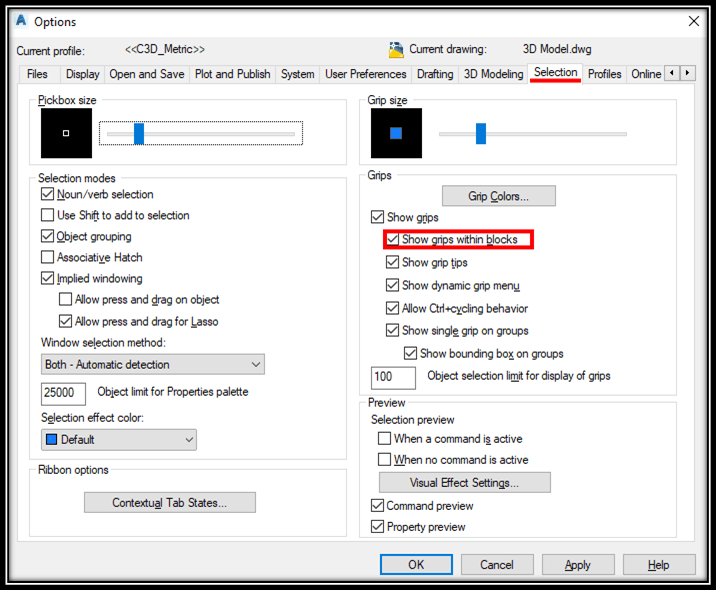
All this headache comes from one small tick in options menu called “Show grips within blocks”. To turn things back round you just have to go to Options menu and find that box under Selection tab.
Or if you prefer commands you can type in command line GRIPBLOCKand when prompted enter **0
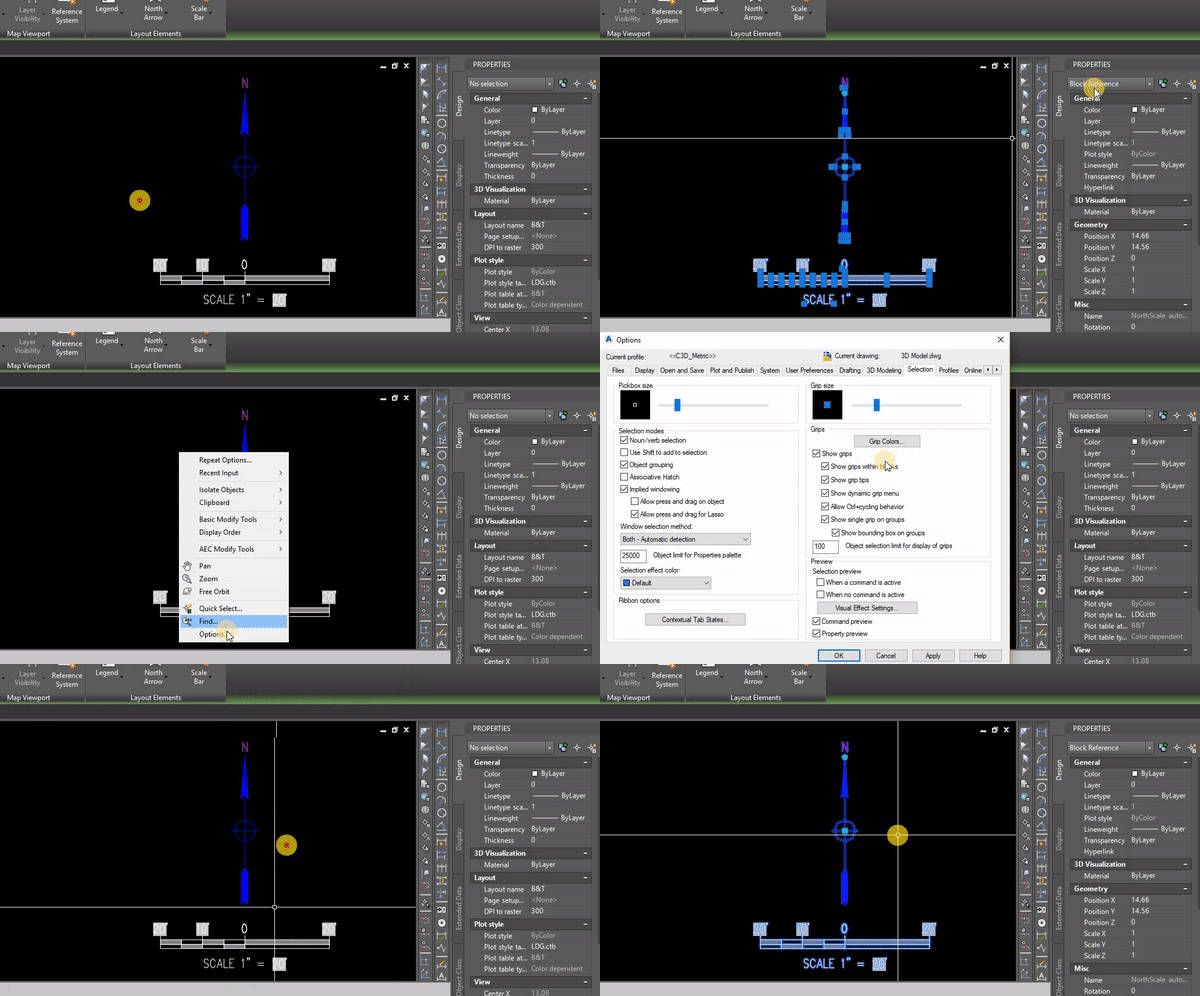 **That’s all now your blocks will behave the way they used to!
When to use it
Use this when you click a block and see a grip on every object inside it, instead of one grip for the whole block. It makes moving or rotating a block slow and risky, because you can easily grab a grip inside the block by mistake. It is worth checking after you open a drawing on a new computer or after someone else changed the settings.
Tips and common mistakes
- Check the Show grips within blocks box under the Selection tab in Options first. If it is ticked, that is the cause.
- If you use the command line, type GRIPBLOCK and enter 0. The grips should return to normal for blocks you select from then on.
- Do not explode the block just to avoid the extra grips. This breaks the block and does not fix the setting.
Related tutorials
Try it on your own drawing
TerraDraft Lite is free to download.