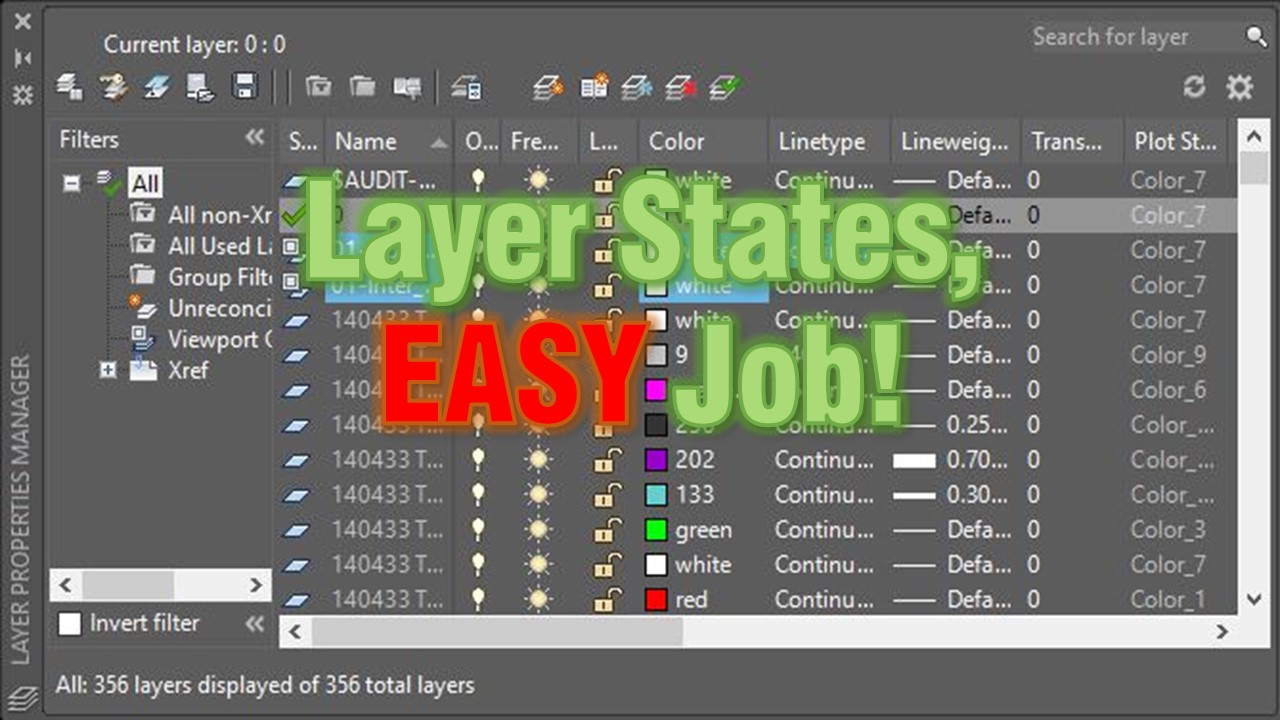
Are you trying to Copy Layer Properties from one drawing to another? Or Trying to Copy a Layer Settings between different Layout Tabs / Viewports? Well, Today we are going to look exactly at how can this be done in AutoCAD.
Copy Layer Settings to Another Drawing
To Copy and Paste the current Layer Properties to another drawing we are going to use a feature called the Layer States. So what exactly are the Layer States? Well, Layer States is a picture of your existing Layer Settings. You can save as many Layer States as you want in an AutoCAD Drawing, when saved it will be extremely easy to go back, or Copy and Paste the Layer Settings. Also, if you are constantly freezing and switching layers on and off just to see parts of your drawing, you would definitely benefit from this great tool.
To Illustrate better the power of Layer States, we are going to look at an example that I hope will show you how the Great Layer States can be! In the example, we will start with a simple and clean Grading Plan and try to create a Construction Staking Plan. For creating the Staking Plan, we will xref in it the already drawn Grading Plan and go from there.
We start with the nice-looking Grading Plan. 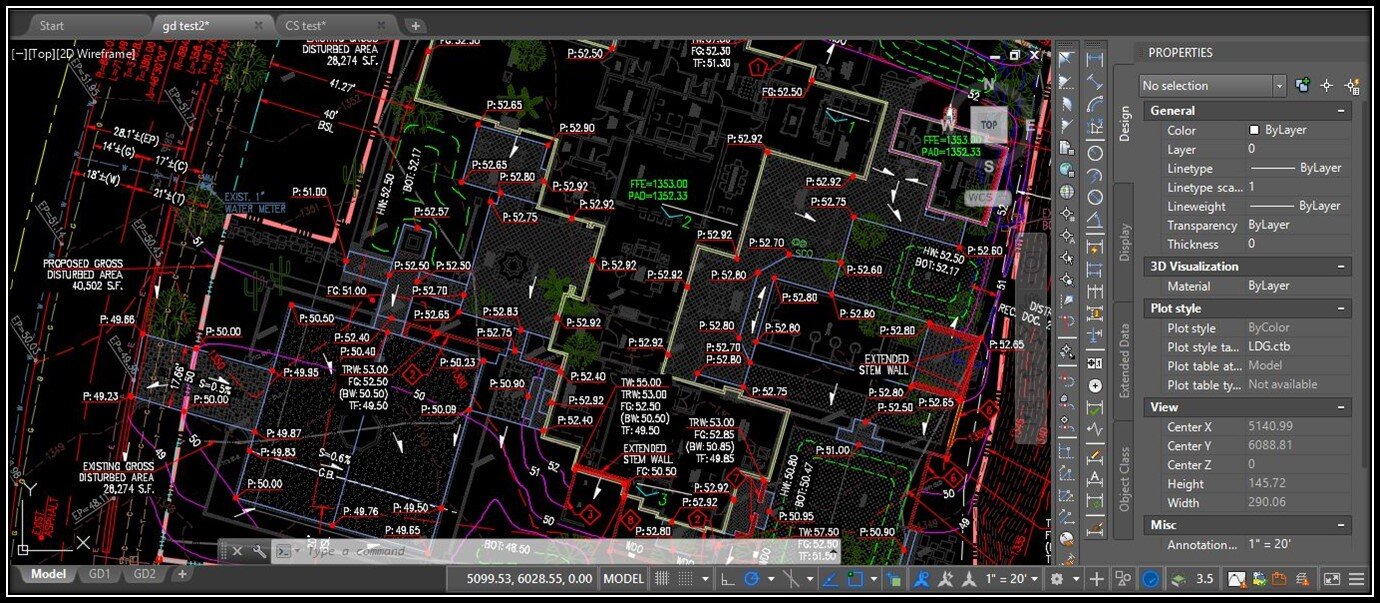
The second step is to Xref the Grading Plan (GD Test 2) in the Staking Plan (CS test2)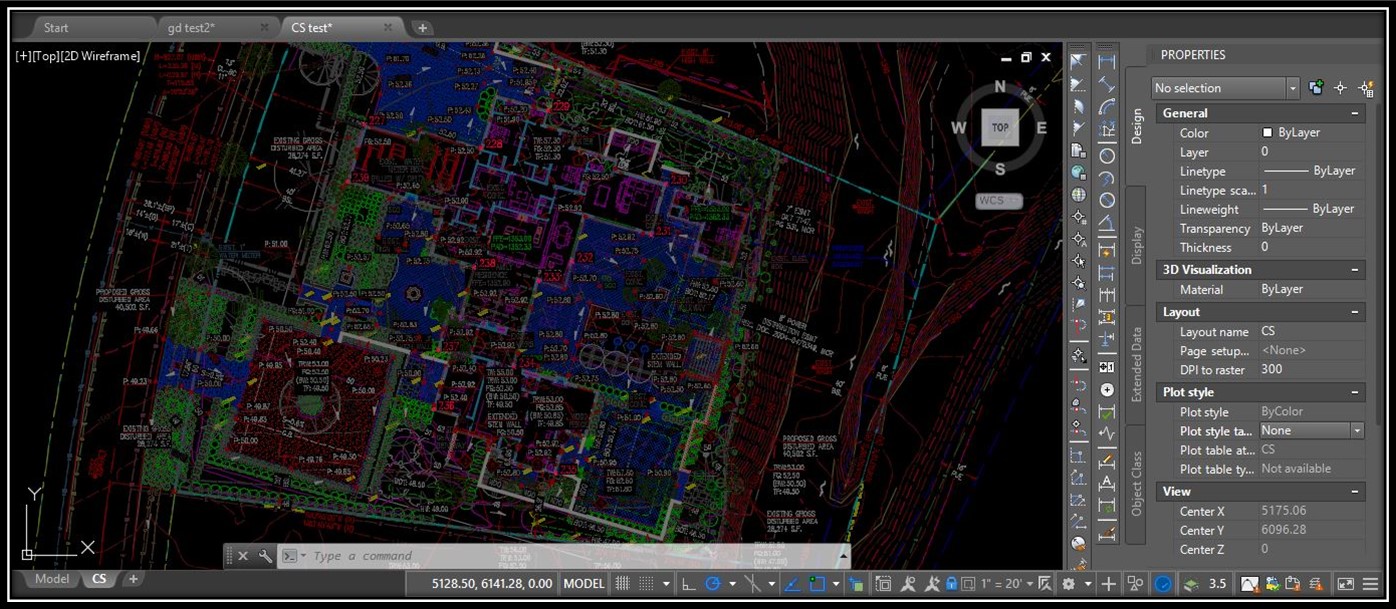 This viewport doesn’t look even close to GD plan. Now we will use the Layer States to copy the Layer Properties from GD to the CS file. To do exactly that Follow the steps below:
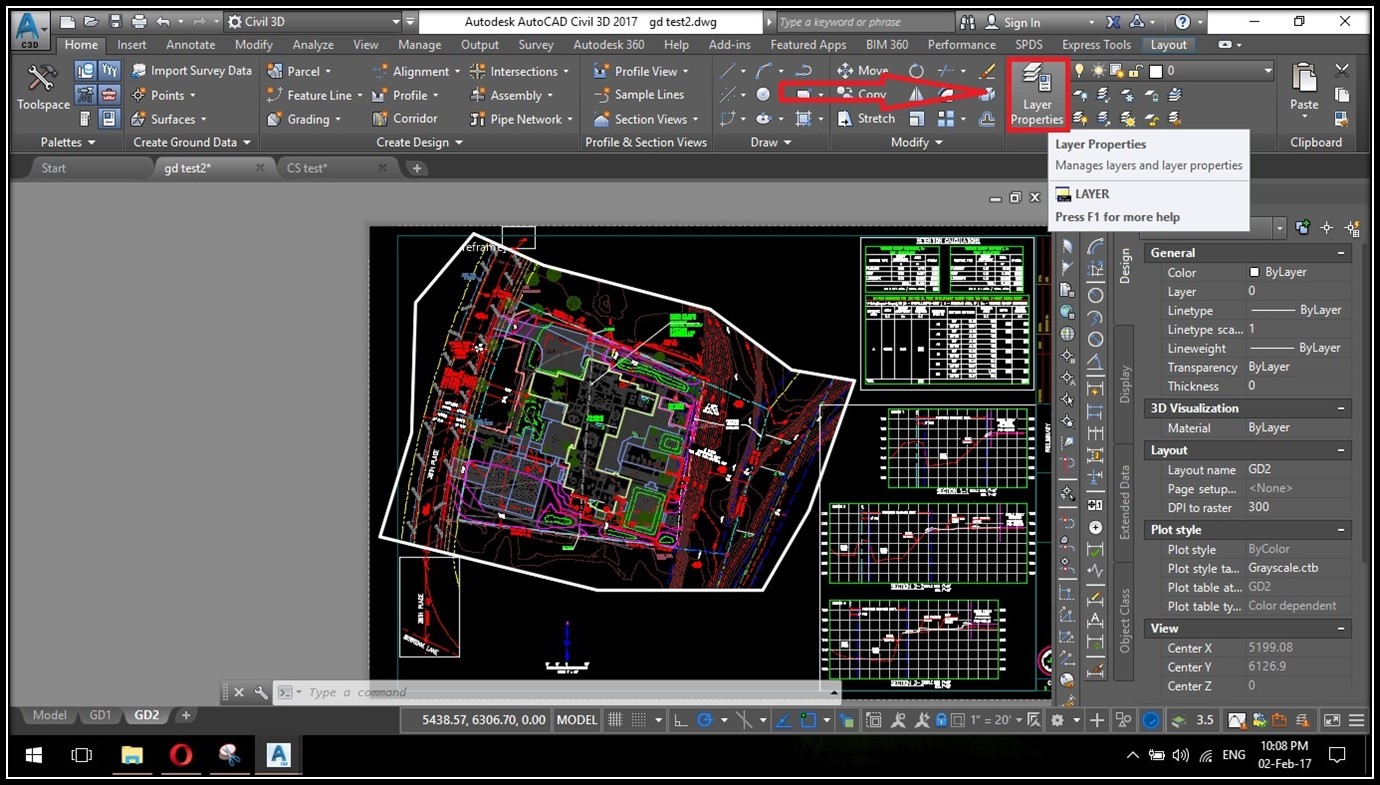
- Into GD viewport in GD drawing and click on Layer Properties
- We click on **Layer State Manager.**Or we can just write on command line LASthis command will directly open Layer State Manager.
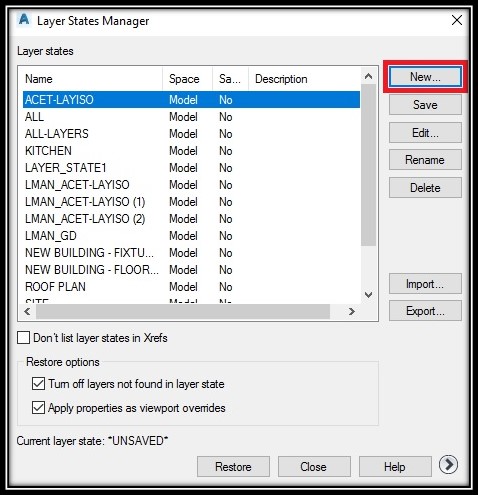
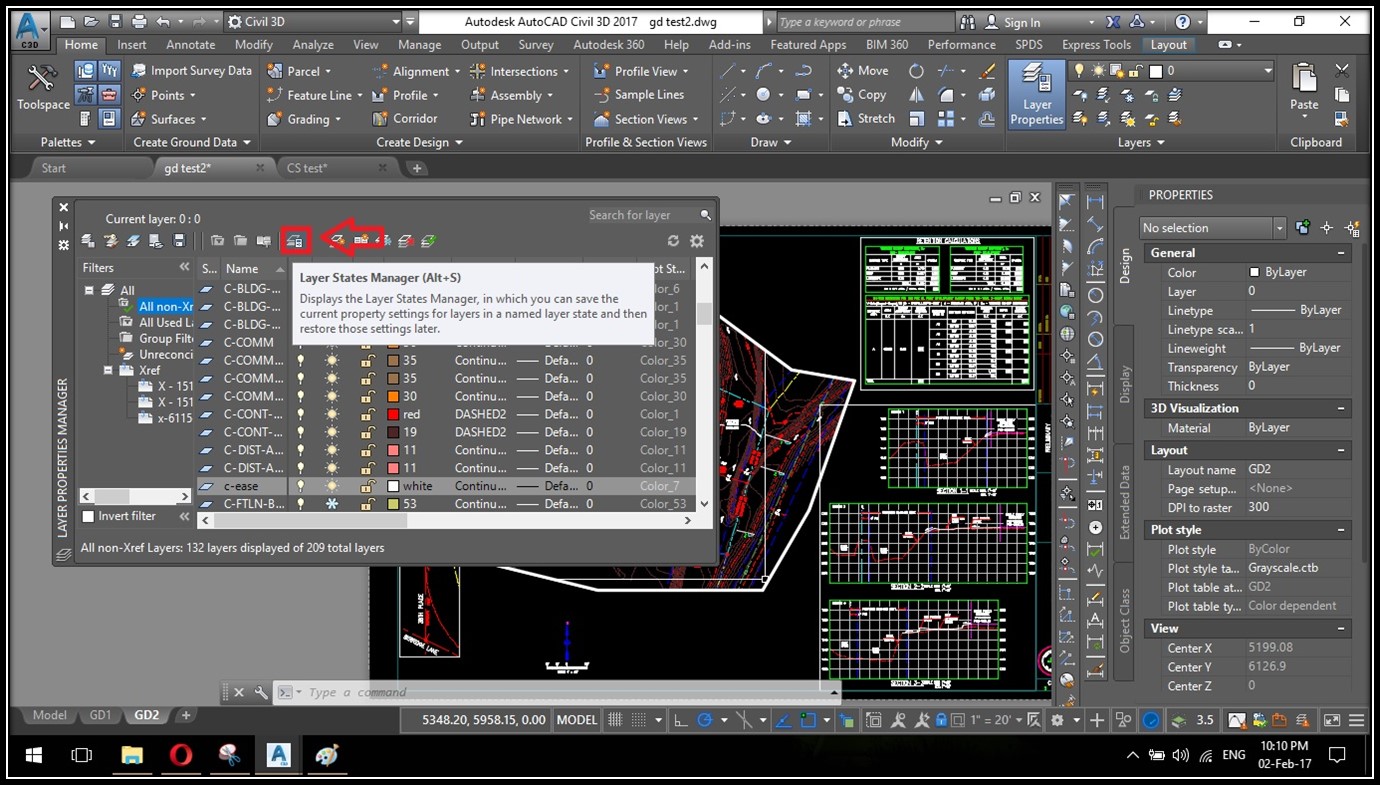 As you can see there are some layer states already present in the drawing.
 - Here we will Click on “New..” to create new Layer state.
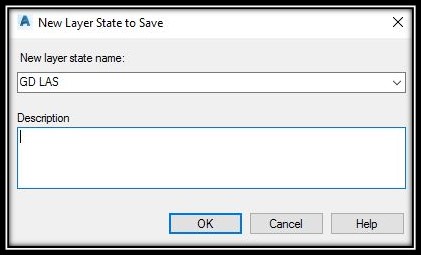
- Type in name - “GD LAS” and click OK. Now we can see that now there is Layer State named “GD LAS”
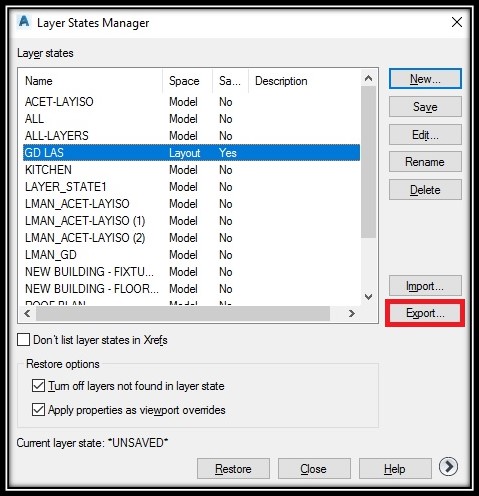
- Now we Click on “Export..” and we will save our .las file somewhere we can find it later.
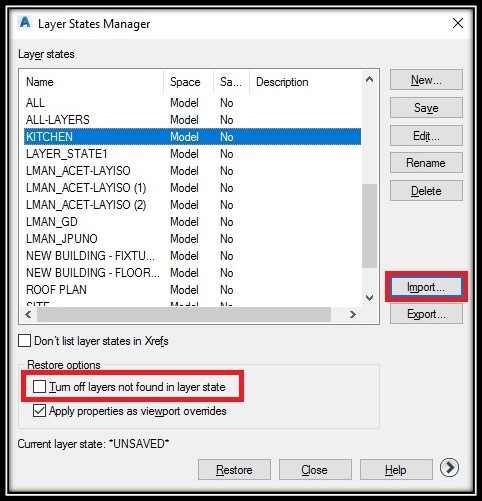
- In the Construction Staking Plan (CS test2) we go to the layout tab and open up our viewport.
- Now we open our Layer State Manager. Here, we uncheck Turn off layers not found in layer state and click Import.
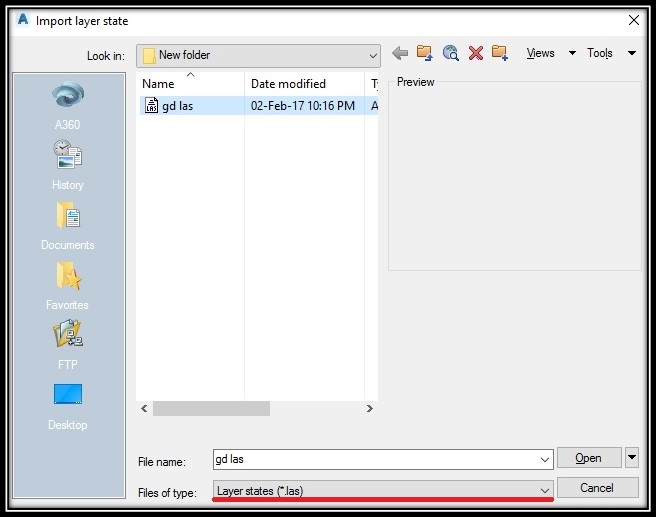
- When searching fot the previously saved file, we make sure that File Type is selected to .las. When finding it ,we can import it by hitting the “Open” button.
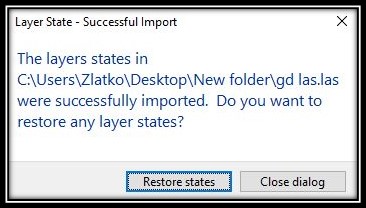
- A window will pop up and ask you if you want to Restore states, you click on Restore States.
The Result:
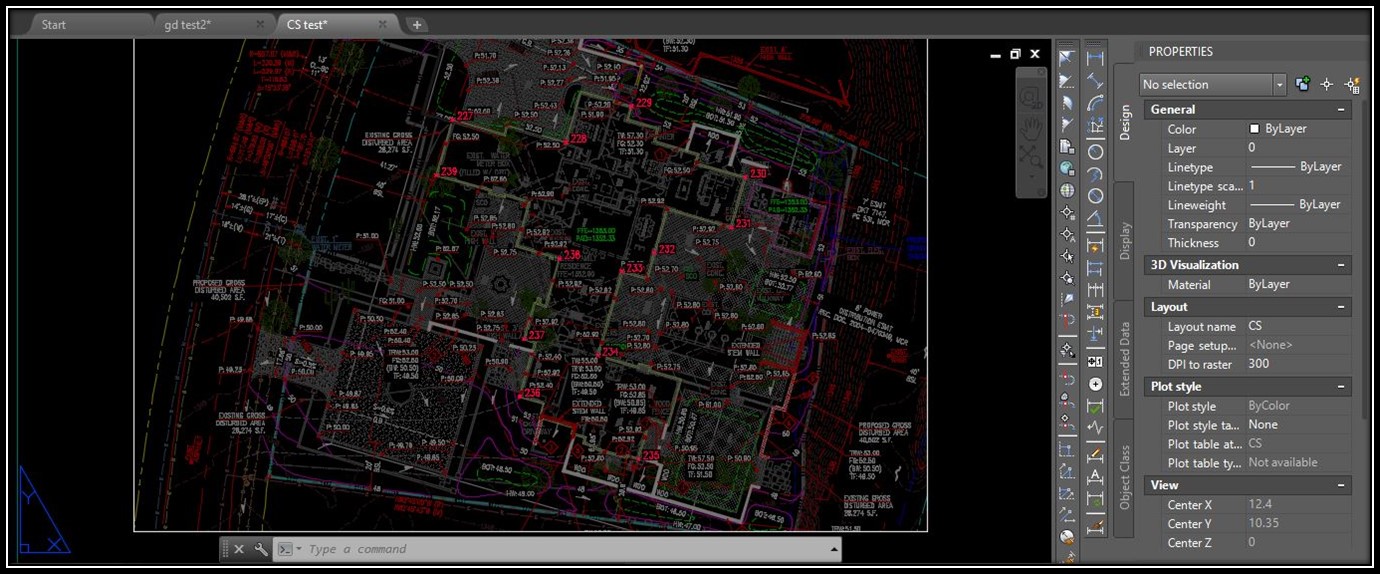
Following the steps above you can Copy Layer Settings from different Drawings or different viewports from one drawing.
Hope you find this post useful. To learn more great educational Tips & Tricks don’t forget to check our other AutoCAD Tips!
Try it on your own drawing
TerraDraft Lite is free to download.